 AI-First
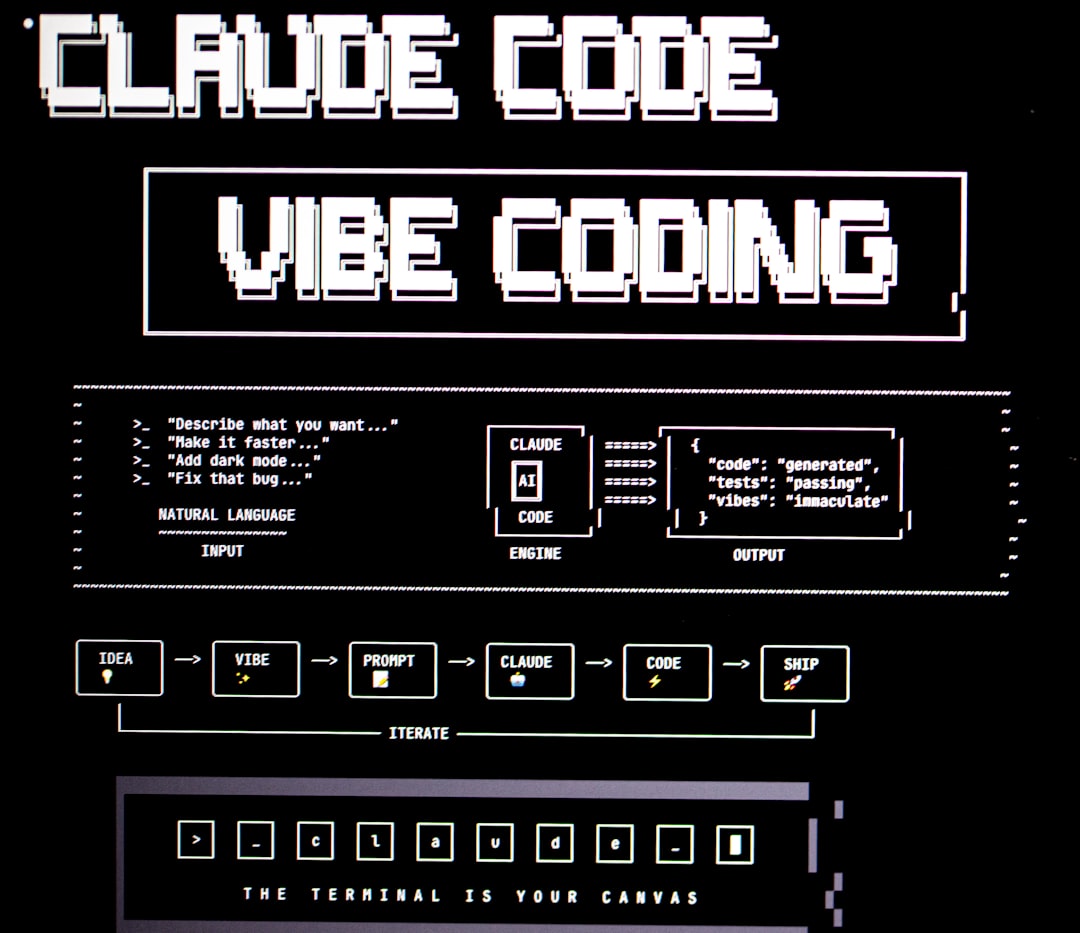
Claude Code is Anthropic's autonomous AI agent that acts directly on your machine: it creates files, runs commands, and fixes its own mistakes in a loop, without you touching a single line of code. That is the fundamental difference with a chatbot: Claude Code does not explain how to do things, it does them for you. The Opus 4.6 model powering it reached 80.8% on the SWE-bench Verified benchmark in February 2026, among the top scores for coding agents at that time according to the Epoch AI leaderboard (the benchmark moves fast: Claude Mythos Preview hit 93.9% in May 2026). In under ten minutes, it can reproduce an entire website design from a screenshot or build a working application from a single sentence. I have been using Claude Code daily for several months on my own projects (websites, internal tools, automations), and this guide collects everything I wish I had on day one, especially for complete beginners who do not know where to start. The tool is extraordinarily powerful, but most people miss its key features for lack of a clear guide. Whether you are an entrepreneur, a developer, or a beginner who has never written a line of code, this guide gives you the solid foundation to use it effectively.
- 🤖 Claude Code acts directly on your machine: it creates, fixes, and deploys without you touching any code.
- 💰 The $20/month Pro plan is the realistic entry point; Max ($100-$200/month) is the tier for heavy or team usage.
- 🧠 The CLAUDE.md file gives Claude persistent memory between sessions, which radically changes productivity.
- ⚡ Skills and sub-agents are the most powerful and most overlooked features: master them before anything else.
What Claude Code actually is (and what it is not)
In short: Claude Code does the work for you; Claude.ai (the chatbot) explains how to do it yourself. That is the fundamental distinction that determines everything else.
Claude Code is an AI agent that acts directly on your computer. You describe what you want to build in plain language, and it creates the files, runs the commands, checks its own work, and fixes errors in a loop. It is not a chatbot that explains how to do something. It is a tool that does it for you.
The distinction with the regular Claude you know in the browser is fundamental: Claude.ai can explain how to create a website, Claude Code builds it directly on your machine. It is the difference between asking someone for directions and having a driver.
On the technical side, the difference with tools like Cursor is just as clear. Claude Code gives you direct access to the model, with no extra layer on top. No forced system prompt, no lag from an intermediary interface. Claude Code's agentic mode lets it spawn sub-agents: Claude can launch multiple tasks in parallel, each handled by a specialized agent. That is what allows it to manage complex projects without losing track.
In terms of what you can expect: reproducing a website design from a screenshot, creating a working management application (restaurant, bookings, dashboards), deploying a project online, automatically creating a GitHub pull request. All without touching any code.
Installation and choosing your access method
To get started with zero configuration, the Claude Desktop app is the fastest path: two-minute download, no command line. For advanced automation, the terminal (CLI) gives you access to permissions, hooks, and scripts.
There are three ways to access Claude Code, and the right choice depends on your skill level and intended use.
The Claude Desktop app is the recommended entry point for beginners. You download the app from the Claude website (available on Mac and Windows), sign in, and access Claude Code directly from the "Code" tab. Since early 2026, the app includes a live preview of web projects: Claude generates your site, you see it appear on the right side, and Claude takes its own screenshots to verify the result matches your request.
The terminal offers more options for automation and scripting. The recommended installation method since 2026 is Anthropic's native script, a single command depending on your OS, with no Node.js required:
- macOS / Linux / WSL:
curl -fsSL https://claude.ai/install.sh | bash - Windows (PowerShell):
irm https://claude.ai/install.ps1 | iex - Windows (WinGet):
winget install Anthropic.ClaudeCode
Once installed, type claude in any project folder to start a session. This is the most complete version, used by those who want hooks, advanced automation, or to manage multiple projects in parallel.
Essential commands to know:
| Command | What it does |
|---|---|
claude |
Start interactive mode in the current folder |
claude "task" |
Run a task in one command without opening interactive mode |
claude -c |
Resume the last conversation in the current folder |
/init |
Automatically generate a CLAUDE.md from the existing project |
/powerup |
Launch built-in tutorials (18 animated lessons, 3-10 min each, since v2.1) |
#instruction |
Save an instruction to CLAUDE.md without editing the file |
/help |
List all available commands and skills |
exit or Ctrl+C |
Quit Claude Code |
The official Claude Code documentation also covers the Homebrew and Linux package manager variants (apt, dnf, apk) if you prefer those methods.
The VS Code, Cursor, and JetBrains extensions are aimed at developers who want Claude Code directly inside their editor. The Cursor extension, for instance, lets you open Claude Code via a "Run Claude Code" button and see the proposed changes directly in the editor as a diff.
On pricing: you will need at least the Pro plan at $20 per month (roughly €17). The free tier is not enough. For heavy users, two Claude Max tiers exist: Max 5x at $100/month and Max 20x at $200/month, offering 5x and 20x the Pro usage respectively. If you prefer pay-as-you-go via the API, expect between $3/million tokens (Sonnet 4.6) and $5/million tokens (Opus 4.6) according to Anthropic's official pricing; an intensive session can quickly run up to several dollars. The monthly subscription remains far more cost-effective for regular use.
Your first projects: a website and an app in a few prompts
To get started: describe your project the way you would explain it to a colleague. Claude Code builds, checks its own work, and iterates autonomously, without you supervising every step. Here are two typical use cases for the first few hours.
Reproducing a design from a screenshot. Take a screenshot of a site you like, paste it into Claude Code's text area, and ask it to reproduce the design. Provide context: "Recreate this design exactly. It is a landing page for a business coach based in Paris. Replace the English text with realistic French content." Claude will create its own task plan, generate the HTML and CSS, then automatically take screenshots to verify its result matches your request. It corrects any discrepancies and iterates until it is right.
Building a working application. Describe your need the way you would to a colleague. "Create a dashboard to manage the evening service at a 40-seat restaurant. Visual floor plan with 12 numbered tables, each table changes color based on its status (free, reserved, in progress, needs clearing). Clicking a table shows the reservation details. A counter at the top. Clean design." In a single prompt, you get a complete web app with color coding, allergy management, special notes, and even a revenue estimate per table.
Once your application is ready, you can ask Claude Code to prepare it for deployment and create a zip file. Upload that zip to a host, and your application is accessible from any browser in under ten minutes.
What makes all of this effective is Claude Code's iteration loop: build, verify, fix, repeat until the target result is reached. It is not a code generator you need to babysit. It is an autonomous agent.
For a deeper look at the tool's real capabilities, the article J'ai cloné un site à 100 000 euros avec Claude Code en 15 minutes documents a concrete case with detailed steps.
Where to start when you are a complete beginner?
If you have never touched code before, here is the most direct path to a first concrete result:
- Week 1: Download Claude Desktop, create a Claude Pro account ($20/month), and ask Claude to recreate a landing page from a screenshot of a site you like. Watch the build / verify / fix loop in action.
- Week 2: Type
/initon your project to generate a CLAUDE.md, then build a small application (dashboard, form, to-do list). Rungit commitafter each session as a safety net. - Week 3: Enable Plan Mode before every significant change, and launch your first parallel task with sub-agents (two simultaneous fixes on two parts of the project).
Within two to three weeks, a complete beginner can create and deploy real projects without outside help, as long as these three steps are followed in order.
The 5 classic mistakes when starting with Claude Code
Avoid at all costs: prompts that are too vague, sessions without a CLAUDE.md, major changes without Plan Mode, no git, and tasks that are too ambitious in a single prompt. These five habits cover almost every mistake made in the first few weeks.
After several months of intensive use, here are the five traps that nearly every new user falls into, and how to avoid them.
1. Prompts that are too vague. "Make me a website" does not produce good results. Claude Code is capable, but it needs context: target technology, expected structure, target audience, specific behavior. A twenty-word prompt yields an incomparably more useful result than a five-word prompt.
2. Ignoring CLAUDE.md. Without this file, every session starts from scratch. Claude does not remember your conventions, your tech stack, or your style preferences. Create a CLAUDE.md from your very first project, even a minimal one, using /init. It is the difference between a collaborator who knows you and someone who shows up without a briefing every morning.
3. Making major changes without Plan Mode. In normal mode, Claude Code acts immediately. On an existing project, a poorly worded instruction can modify multiple files at once in the wrong direction. Enable Plan Mode (Shift+Tab in the terminal) for any task that touches multiple files or the architecture.
4. Working without git. Claude Code modifies real files on your machine. Without a git history, a mistake by Claude can be difficult, or even impossible, to undo. Run git init before you start and git commit regularly. It is your safety net.
5. Trying to do everything in a single overly ambitious prompt. "Create a full application with authentication, database, REST API, and admin interface" all at once is too broad. Break it down: prototype first, then features one at a time. Claude Code handles complex projects much better when the steps are clearly defined.
CLAUDE.md, skills, and sub-agents: the three features that change everything
CLAUDE.md preserves your context between sessions, skills automate your repetitive workflows, sub-agents handle multiple tasks in parallel. Mastering these three mechanisms is what separates casual users from power users, and most people overlook the last two.
These three mechanisms are widely underutilized, even by regular Claude Code users. Yet this is where real productivity gains happen.
The CLAUDE.md file solves the memory problem. Without it, every new session starts from scratch: Claude does not know who you are, what your code conventions are, or what tools you use. With a CLAUDE.md at the root of your project, you give Claude a persistent context that it reads at the start of every session.
What a good CLAUDE.md typically contains: the project's tech stack, naming conventions, available commands, the expected visual style (colors, typography), and rules that Claude must always follow ("always use named exports", "always use realistic content, never generic placeholder text"). To create this file automatically from an existing project, type /init in Claude Code. It analyzes your codebase and generates a CLAUDE.md with the essential information.
To enrich this file over time, use the # command in your conversation: Claude saves the instruction directly to CLAUDE.md, without you having to edit it manually.
This persistent memory mechanism is explored in more detail in the article AutoDream : Claude Code peut maintenant "dormir" et consolider sa mémoire entre sessions.
Skills are for standardizing repetitive tasks. A skill is a text file that describes a workflow step by step. You create it once, store it in your project, and you can invoke it in any session with a simple command.
A concrete example: an "interface audit" skill that asks Claude to open a URL, take a screenshot, analyze the design against a criteria grid, score each point out of 10, and produce a report. Once the skill is created, all you have to write is "run an audit on this URL, follow the steps in the audit-site skill." Claude executes the full workflow autonomously, with the same criteria every time.
The article Le dossier .claude que personne ne regarde (et qui change tout) details how to organize your skills, commands, and configuration files in the .claude folder.
Sub-agents let Claude Code handle multiple tasks in parallel. Instead of waiting for one task to finish before launching another, Claude can spawn several specialized agents that work simultaneously. For example, ask it: "Launch two tasks in parallel. First, check that the app is responsive on mobile. Second, add a statistics page with this week's estimated revenue and a chart." Claude handles both at once, and you can even add a third request while it is working; it will be added to the queue.
MCP connectors and permission configuration
In short: MCPs are Claude Code's "power outlets." They let it read your Gmail, update Notion, push code to GitHub, or query your database, directly from the terminal or the Desktop app. Without MCPs, Claude Code works inside your project; with MCPs, it orchestrates all of your tools.
MCPs (Model Context Protocol) are the connectors that allow Claude Code to communicate with other applications. Notion, Gmail, Google Calendar, Slack, Make, n8n, real-time search tools... The list is long and grows every week.
To add an MCP to a project, the command is straightforward: claude mcp add --transport http [server-url] -s project. The -s project option installs the server locally in your project, which means every developer who clones your repo automatically gets the same configuration.
One particularly useful MCP for developers is Context7, which gives Claude access to up-to-date technical documentation for any library. No more hallucinations about APIs that changed after the model's knowledge cutoff. For a deeper understanding of what the MCP protocol enables, the article MCP : ce que le Model Context Protocol change vraiment explains how it works and the most useful use cases.
On permissions: by default, Claude asks for your approval on every action. You can fine-tune this behavior in the project's settings.json file. The acceptEdits mode is the most common: Claude edits files freely but asks for confirmation before running shell commands. You can also define allow-lists or block-lists for commands, and enable or block MCPs individually.
For developers who want a complete, reusable configuration, the article Les 12 fonctionnalités Claude Code que vous n'utilisez probablement pas covers these settings in detail.
Plan Mode: make Claude think before it acts
Plan Mode is quality control before action: Claude presents its full action plan, you approve it (or correct it), and only then does it execute. Essential as soon as your task touches multiple files.
Plan Mode is the most useful feature for avoiding costly mistakes, and the most overlooked by beginners. In normal mode, Claude Code acts immediately: it modifies files, runs commands, moves forward. In Plan Mode, it first stops to describe exactly what it will do, file by file. You approve, adjust, or reject before it touches anything.
To enable it from the terminal, press Shift+Tab in an interactive Claude Code session: you switch to "plan" mode. In the Claude Desktop interface, the "Plan" button is visible at the bottom of the input area.
When to use it: whenever the task might affect multiple files or have side effects (refactoring, migration, adding a cross-cutting feature). For a quick fix or a question, normal mode is faster. For anything that touches architecture or data, Plan Mode saves you costly back-and-forth.
In practice: Claude presents its plan as a numbered list with the affected files and the planned changes. You can modify the plan in the chat ("do not touch file X", "also add server-side validation") before telling it to proceed.
Claude Code vs Cursor vs GitHub Copilot: which one should you choose?
Claude Code acts on your behalf; Cursor helps you act. That is the fundamental distinction. Here is the full comparison of the three tools:
| Tool | How it works | Runs commands | Best for |
|---|---|---|---|
| GitHub Copilot | Real-time code completion in the editor | No | Developers who write code |
| Cursor | Integrated IDE, guided file modifications | Limited (via editor) | Devs who want an AI layer on VS Code |
| Claude Code | Autonomous agent: reads, writes, tests, and deploys | Yes, natively | Entrepreneurs, devs, non-coders who want a finished result |
The fundamental difference: Copilot and Cursor help you write code. Claude Code writes the code for you. If your goal is to learn to code line by line, Copilot is more instructional. If your goal is to have a working product as fast as possible, Claude Code is the right choice.
A practical note: the two are not mutually exclusive. The Claude Code extension for Cursor lets you keep your usual editor while benefiting from the autonomous agent. Many advanced users combine both.
Verdict
Claude Code is the most powerful tool I have tested in recent months for creating and automating real projects. It is not perfect: the $20/month plan hits its limits during intensive sessions, and the tool does not replace a real development team on complex projects.
But for building a working prototype in a few hours, automating repetitive tasks, or running a project end-to-end without writing a single line of code, the return on investment is real. The real leverage comes from three advanced features: CLAUDE.md for memory, skills for repeatability, and sub-agents for speed. Most users miss the last two.
If you are just getting started, begin with the Claude Desktop app, create a simple project, and spend 30 minutes on a good CLAUDE.md. Everything else follows from there.
Frequently asked questions about Claude Code
Is Claude Code available in French? Yes. Claude Code responds in French if you write to it in French. The official documentation also has a complete French version on code.claude.com. The tool itself has no imposed language: Claude detects and responds in the language of your messages.
Is Claude Code free? No. Claude Code requires at least the Claude Pro subscription at $20/month (roughly €18). The free tier does not include Claude Code access. If you prefer pay-as-you-go, the API is available but generally costs more for regular use: according to Anthropic's official pricing, Claude Sonnet 4.6 is billed at $3/million input tokens, which can add up to several dollars in a single intensive session.
What is the difference between Claude and Claude Code? Claude (on claude.ai) is a conversational assistant: it explains, generates text, and answers questions. Claude Code is an autonomous agent: it acts directly on your machine, creating files, running commands, verifying its work, and fixing errors in a loop. The difference is that between asking someone for directions and having a driver.
Do I need to know how to code to use Claude Code? No, but it helps with framing your requests. Claude Code can build a complete application from a plain-language description without you touching any code. That said, being able to read code will let you validate the output and step in if Claude goes in the wrong direction. Complete beginners can start with the Claude Desktop app, which offers the highest level of guidance.
Claude Pro or Claude Max: which should I choose? If you use Claude Code a few hours per week, Pro at $20/month is enough to get started. For daily intensive use or workflows with sub-agents, Pro will hit its limits. Max 5x ($100/month) is the recommended tier for sustained regular use; Max 20x ($200/month) is for teams or highly automated projects. The API remains available on demand, but costs can become unpredictable without a cap.
How do I reset the context between two sessions?
Use the /clear command in Claude Code to erase the current conversation history. To resume a previous session rather than starting a new one, use claude -c (last conversation in the folder) or claude -r to pick from your history. The CLAUDE.md file persists across all sessions; that is its purpose.
Claude Code vs Cursor: which one for beginners? If you do not know how to code yet, start with Claude Code: you describe what you want in plain language, and it builds it from start to finish. Cursor is better suited if you are a developer and want to stay in your VS Code editor with fine-grained control over each change. The two coexist well: the Claude Code extension for Cursor exists, and advanced developers often use both.
Does Claude Code work on Windows?
Yes. Since 2026, Claude Code has a native Windows installer (via WinGet: winget install Anthropic.ClaudeCode) and a PowerShell version (irm https://claude.ai/install.ps1 | iex). WSL2 is still recommended for advanced projects that use Bash scripts, but it is no longer required to get started.
What is Plan Mode and when should I enable it? Plan Mode (Shift+Tab in the terminal) forces Claude to describe its full action plan before modifying anything. Useful whenever the task touches multiple files or could have side effects. For small fixes, normal mode is faster. For refactoring or adding cross-cutting features, Plan Mode saves you from unpleasant surprises.
Can Claude Code break my existing code?
That is the main risk to manage. Claude Code modifies real files on your machine. Two simple precautions: always work in a git repository (so you can git reset if needed), and use Plan Mode for significant changes. You can also configure permissions in settings.json so it asks for confirmation before running sensitive commands.
What is the best starting point for a complete beginner?
Start by installing the Claude Desktop app rather than the terminal: it provides a visual interface with live preview that simplifies the first few hours. Create a simple project (a landing page, a lightweight tool), type /init to automatically generate your first CLAUDE.md, and enable Plan Mode before each modification. These three habits (Desktop app, CLAUDE.md from the start, systematic Plan Mode) cover the majority of mistakes made by new users.
Vidéos YouTube
- CLAUDE CODE: understand everything in 17 minutes (even for beginners) · Henri · ExplorIA
- TUTO / COURS : Comment utiliser Claude Code en tant que développeur · Melvynx